
How To Install DVWA in Virtual Box?
Kawooya Pato
Damn Vulnerable Web App (DVWA) is a PHP/MySQL web application that is damn vulnerable. Its main goals are to be an aid for security professionals to test their skills and tools in a legal environment, help web developers better understand the processes of securing web applications and aid teachers/students to teach/learn web application security in a classroom environment.
Download DVWA from here!
(Download ISO file)
After Downloading open the Virtual box. If you don't know how to install a virtual box, then read this tutorial.
After opening Virtual Box, click on New, put the name & operating system. Like name = DVWA & operating system = Linux, Ubuntu - 64 bit, now a screen will pop up asking for Memory size, I'll give it 800MB of memory. Now, it'll ask you for Hard-Disk, Choose Virtual Hard Disk --> VDI --> It'll Ask you for Storage on Physical Hard drive now, Click Next (it'll Dynamically Allocate).
Now it'll ask you File Location (let it be the default) & Storage (20MB).
NOW I'll guide you Through arrows for better understanding......
Go to settings --> Storage --> DVWA.vdi --> Choose a disk file by clicking on the options available on the upper right side --> choose the ISO image which u Downloaded --> NOW DONE setting up DVWA.
Now Select the application in Virtual Box, and click on start. Select the Startup disk and click start. Wait for some secs, it's starting.
Click Enter and select the option Install among the options available there. --> Loading --> Installing --> Admin & password ( Username :- admin, Password :- password) --> Now Check your Ip Address by typing ifconfig there. Copy that address and paste it into your browser, if it works then BOOM! if not then wait, I'm here.
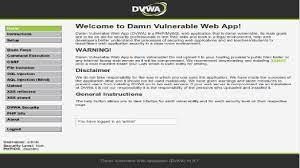
Power off the DVWA if it not works. --> go to settings --> then network --> then select Bridged Adaptor there --> OK --> Start --> Check IP again, paste that IP in browser, it'll work now. Put admin & password ( already told above ). After opening you'll see an interface like this.......
Now if you power off it from Virtual Box, it'll stop working.


 Hello, my name is Jack Sparrow. I'm a 50 year old self-employed Pirate from the Caribbean.
No comments:
Post a Comment